By VocalVia · Updated
How to Convert a PDF to a Podcast
Turn a report, research paper, or PDF into an editable script and natural-sounding podcast audio.
Turn a PDF into an episode
A good PDF-to-podcast workflow does more than read every page aloud. VocalVia extracts the document, helps you choose an episode structure, generates an editable script, and only then creates the audio.
1. Prepare the PDF
Before uploading, check that the PDF contains selectable text. Scanned pages without a text layer may not provide enough content for reliable script generation.
For the best result:
- Remove duplicate cover pages or appendices you do not need.
- Keep the file below the displayed 20 MB upload limit.
- Note the sections, tables, or conclusions that matter most.
- Decide whether listeners need a summary or a detailed walkthrough.
2. Choose an episode format
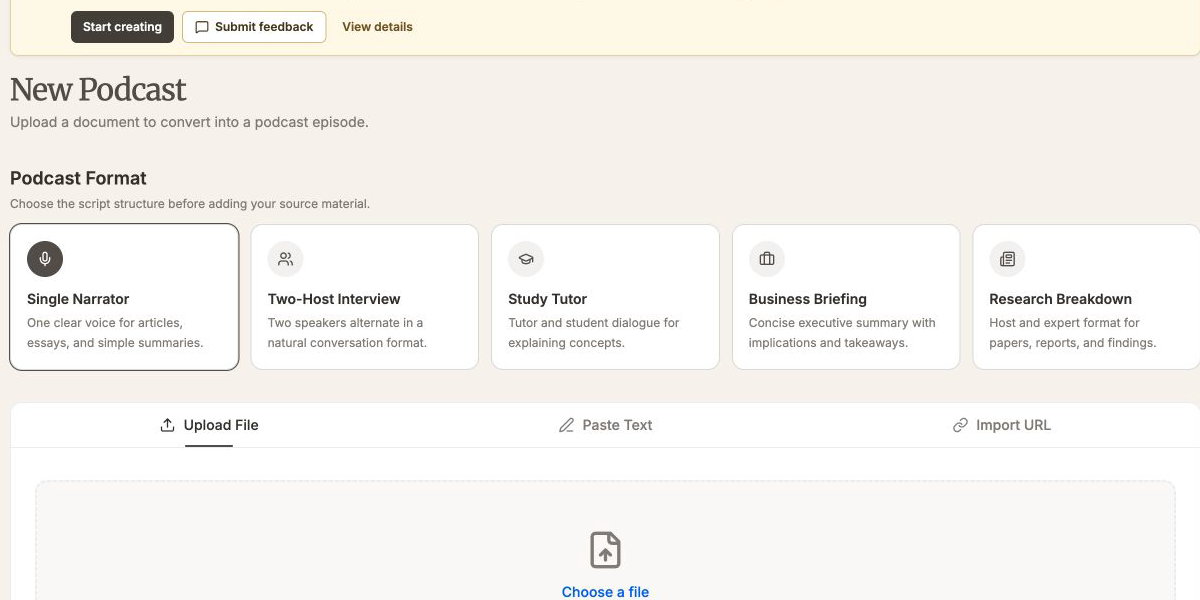
Open New Podcast and choose a format before selecting the file:
| Format | Use it when |
|---|---|
| Single Narrator | You want a direct spoken summary |
| Two-Host Interview | Discussion and contrasting viewpoints help |
| Study Tutor | The PDF teaches a topic or supports revision |
| Business Briefing | Leaders need decisions and takeaways |
| Research Breakdown | Methods, evidence, and limitations matter |
Upload the PDF and wait for VocalVia to create its project workspace.
3. Give the script useful instructions
Choose Summary, Narrative, Conversational, Detailed, or Original as the script style. Then add focused custom instructions, for example:
Explain the main finding first, define specialist terms for a general audience, and include the limitations from the final section.
Specific instructions work better than simply asking for a “better podcast.” Name the intended listener, desired depth, and sections that should receive extra attention.
4. Verify the script against the source
AI-generated scripts should be reviewed before synthesis. Check:
- Names, dates, percentages, and quoted claims.
- Whether a table or chart was interpreted correctly.
- Whether caveats and limitations survived summarization.
- Whether visual references make sense without the PDF on screen.
- Speaker labels in a multi-speaker script.
Click Edit Script to make corrections. The editable script is the main control point between document extraction and generated speech.
5. Generate and review the audio
Open the project in TTS Studio, assign a voice to each speaker, and add pronunciation rules for author names, acronyms, or technical language. Generate the MP3, listen to the difficult sections, and revise the script if needed.
For long reports, a shorter first version is often useful. It lets you confirm the structure and voices before generating a more detailed episode.
Continue learning
Put the guide into practice
Start with your own document and keep the script editable from source to speech.