By VocalVia · Updated
How to Edit a Two-Host Podcast Script
Turn an initial two-host draft into clear speaker turns, assign voices, and generate an MP3 with VocalVia.
Edit a two-host conversation before you generate audio
Two-host episodes work when each voice has a job: one host asks the question a listener needs answered, and the other explains with evidence from the source. TTS Studio supports up to four speakers, so the same method also works for a tutor, expert, or guest.
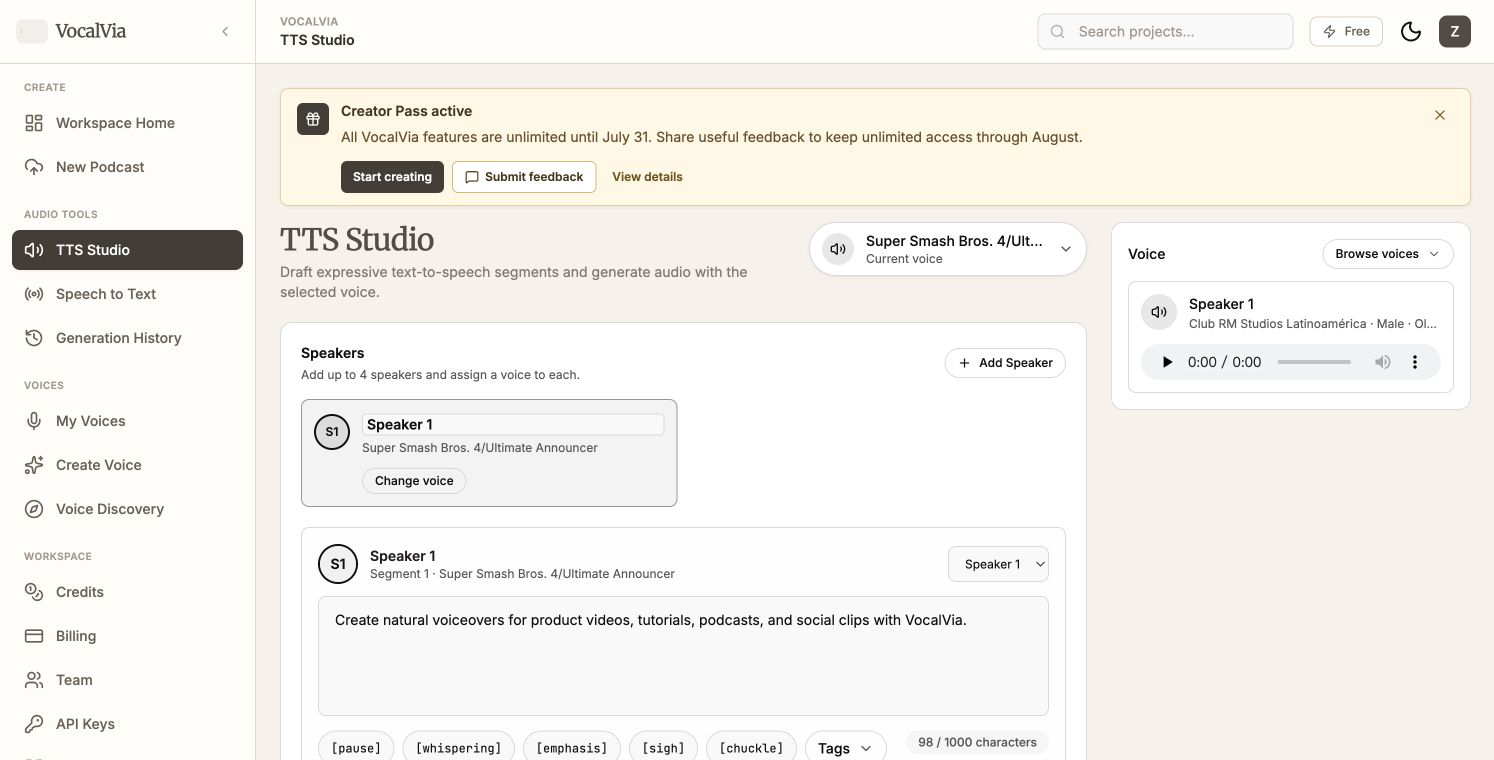
Choose a two-host format in New Podcast, generate a script, then select Edit Script before opening TTS Studio. If you already wrote the dialogue, open TTS Studio directly.
1. Give each host a reason to speak
This original example shows the difference between a weak draft and a useful edit. It is an illustration, not a generated episode or a customer result.
Source note: A small support team moved its weekly status meeting from Friday to Wednesday. The team reported fewer end-of-week escalations, but it did not measure whether the schedule caused the change.
Weak draft:
Host A: The team changed its meeting day and things got better.
Host B: Yes, it was a good idea and everyone liked it.
Host A: Great. Teams should do this too.
Edited dialogue:
Host A: What changed for the support team?
Host B: It moved its weekly status meeting from Friday to Wednesday.
Host A: What did the team notice afterward?
Host B: It reported fewer end-of-week escalations. That is an observation, not proof that the meeting day caused the change.
Host A: What can another team take from that?
Host B: Try an earlier review point, then compare escalations over several weeks before treating it as a rule.
The edit removes agreement that adds no information, gives the questioner a listener-facing role, and keeps the source limitation in the spoken script.
2. Set up speakers
- Click Add Speaker.
- Rename each speaker so the script is easy to scan.
- Use Change voice on each speaker card.
- Preview voices before choosing them.
Choose voices that are easy to distinguish. A contrast in pitch, pace, or vocal texture usually works better than two similar voices. Preview each voice with a line from the actual script, especially names and technical terms.
3. Build the conversation
Each segment has a speaker selector and its own text editor. You can:
- Click Add Segment to add another turn.
- Change the speaker assigned to any segment.
- Move segments up or down to change the conversation order.
- Merge adjacent segments when they belong to the same speaker.
- Split a long segment at the cursor with
Ctrl+EnterorCmd+Enter.
Keep each segment focused on one speaking turn. Shorter segments are easier to reorder, regenerate, and direct.
Before you generate, read the speaker labels from top to bottom. If the same person has two consecutive turns, merge them unless the interruption changes the meaning. If a turn contains two questions or two ideas, split it so a listener can follow the exchange.
4. Direct the performance
Use the delivery menu on each segment for a neutral, preset, or custom direction. A custom direction can describe an arc that a single tag cannot capture, for example:
Begin cautiously, pause after the question, then finish with quiet confidence.
You can also insert supported tags such as [pause], [whispering], or [excited]. Auto Tag analyzes one segment; Auto Tag All processes the full script. Always review the result before generating.
Use directions sparingly. A delivery instruction describes how a whole turn should sound; it should not replace an edit to unclear wording. Check that direction tags do not alter a quoted claim or make a source limitation sound more certain than it is.
5. Generate and review the combined MP3
Check that every segment has text and that the character and segment counters are within the displayed limits. Click Generate Audio.
VocalVia generates segments in order and stitches them into one MP3. The task continues in the background, so you can leave the Studio and return through Generation History. Listen first for speaker order, role distinction, pronunciation, and whether the last answer includes the source's key caveat.
If the same text, voices, and settings are already running, VocalVia shows Already running instead of starting a duplicate job.
Related guides
Put the guide into practice
Start with your own document and keep the script editable from source to speech.