By VocalVia · Updated
TTS Studio Tips and Tricks
Control voices, delivery, pronunciation, settings, and generation history.
Work efficiently in TTS Studio
TTS Studio is the final editing and generation workspace for both quick voiceovers and document-to-podcast projects.
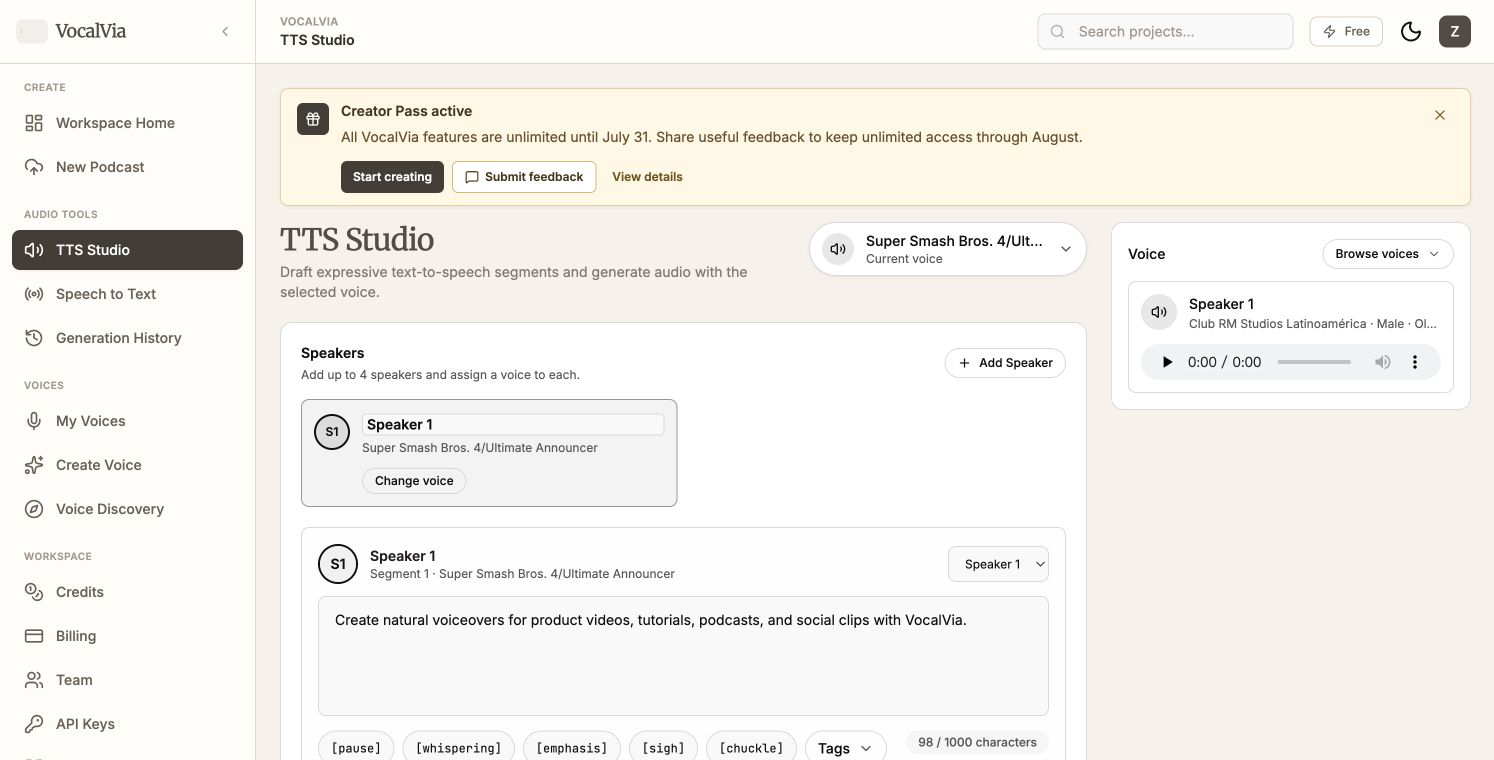
Choose voices
Click the current voice or Change voice on a speaker card. The picker includes:
- Recently Used: voices selected on this device.
- Explore: The public voice library.
- My Voices: private voices you cloned or designed.
- Bookmarked: catalog voices saved for quick access.
Preview a voice before selecting it. For multi-speaker work, set the voice on each speaker card rather than only changing the current voice at the top.
Shape each segment
Each segment supports three complementary controls:
- Delivery preset: quickly select a performance style.
- Custom delivery direction: describe tone, pacing, emotion, or a transition in plain language.
- Expression tags: insert supported inline cues such as
[pause]or[whispering].
Use Auto Tag for one segment or Auto Tag All for the full script. Auto Tag preserves the spoken text and adds expression cues; review the tags before generating.
To restructure a script:
- Add, remove, or reorder segments.
- Change the speaker assigned to a segment.
- Merge neighboring segments from the same speaker.
- Press
Ctrl+EnterorCmd+Enterto split at the cursor.
Teach difficult pronunciations
Open Pronunciation and add a term plus the way it should be spoken. Rules can be enabled, edited, or deleted and may apply to the current project or the wider workspace.
Before generation, the Pronunciation check shows which enabled rules match the current script.
Adjust output settings
The settings panel controls:
- Speed: changes speaking pace.
- Volume: raises or lowers the output level.
- Loudness Normalization: evens out perceived loudness across the finished audio.
- Text Normalization: cleans compatible text formatting before synthesis.
Use subtle speed and volume changes first. Extreme values can make speech sound less natural.
Generate without losing progress
Click Generate Audio after all segments are valid. The request is saved to persistent history and continues in the background.
- A pending item updates automatically.
- A successful item can be played or downloaded.
- A failed item can be loaded back into the Studio and retried.
- An identical request already in progress is not submitted twice.
The right-hand history panel shows recent work. Use Generation History for the complete paginated list.
Related guides
Put the guide into practice
Start with your own document and keep the script editable from source to speech.