By VocalVia · Updated
How to Turn an Article into a Podcast
Paste article text, reshape it for listening, and generate an editable AI podcast.
Repurpose a web article for audio
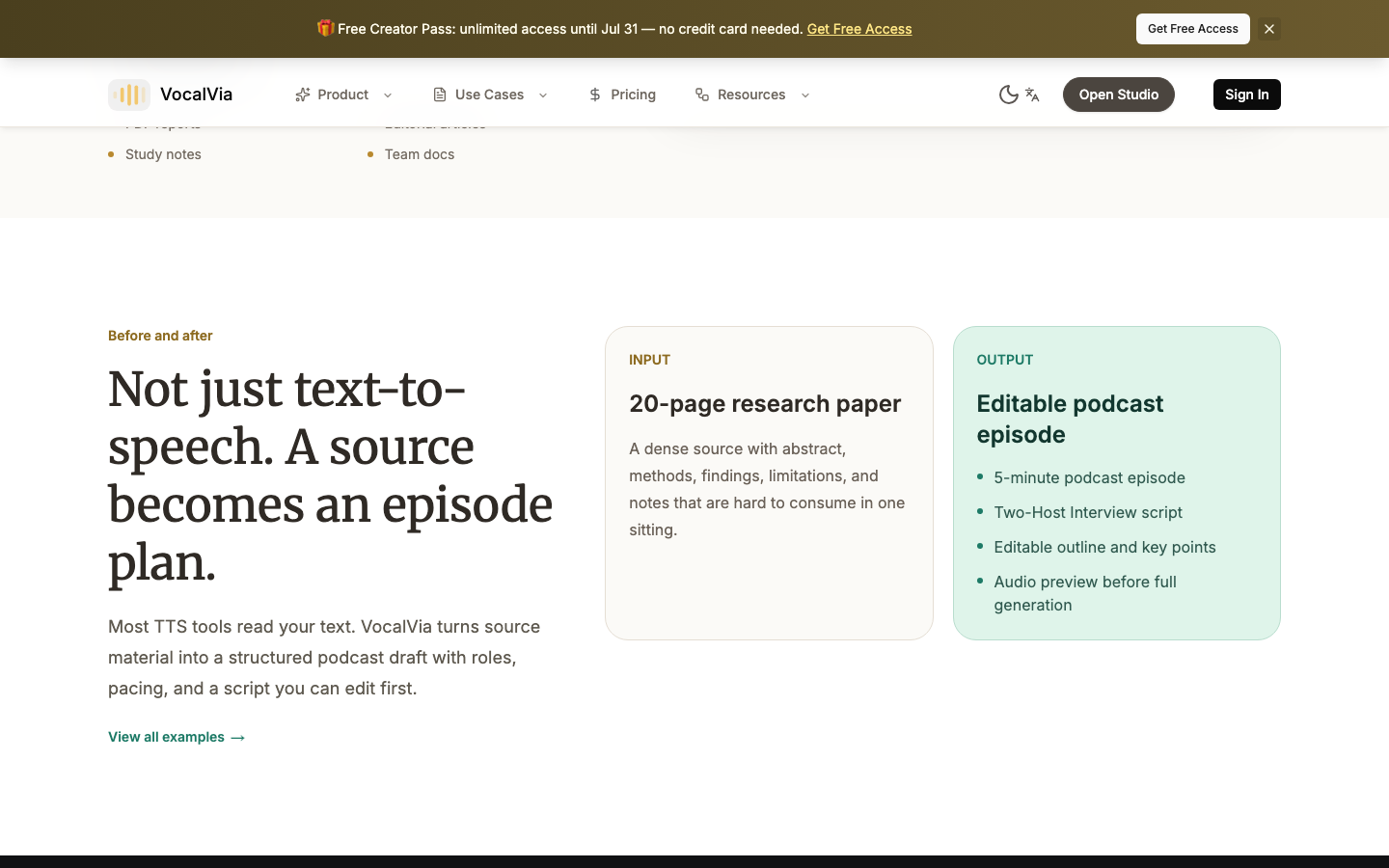
An article and a podcast serve different reading habits. Paste the article text into VocalVia, create a project, and reshape the source into a script that works without a screen.
1. Paste the article text
Open New Podcast, select Paste Text, and paste the article body. Add a clear title so the project is easy to find later.
Remove menus, related links, subscription prompts, and other page furniture before submitting the text. Only repurpose content that you own or have permission to use.
2. Pick a format for the listener
- Use Single Narrator for a concise audio edition.
- Use Two-Host Interview when discussion adds context.
- Use Business Briefing for decisions, risks, and takeaways.
- Use Study Tutor when the article explains a difficult subject.
The format controls the speaker structure. The script style controls how closely the result follows the source.
3. Rewrite visual language
Articles often rely on headings, hyperlinks, screenshots, or phrases such as “the chart below.” During script review:
- State the meaning of a visual instead of referring to its position.
- Introduce links as resources rather than reading long URLs aloud.
- Expand abbreviations the first time they appear.
- Break long paragraphs into shorter spoken turns.
- Add a clear opening and closing for listeners.
4. Preserve attribution and accuracy
Keep the author's central claim and important qualifications intact. Check proper nouns, figures, and direct quotations against the original page. If the episode will be published, include appropriate source attribution in the spoken script or episode notes.
5. Send the script to TTS Studio
Open TTS Studio from the project workspace. Select voices, review the segment order, and add delivery directions only where they improve the listening experience. The generated task remains available in Generation History for playback and download.
Related guides
Put the guide into practice
Start with your own document and keep the script editable from source to speech.