Getting Started with VocalVia
Turn a document, pasted text, or web article into your first AI podcast.
Create your first podcast
VocalVia takes you from source material to an editable podcast script, then opens that script in TTS Studio for voice selection and audio generation.
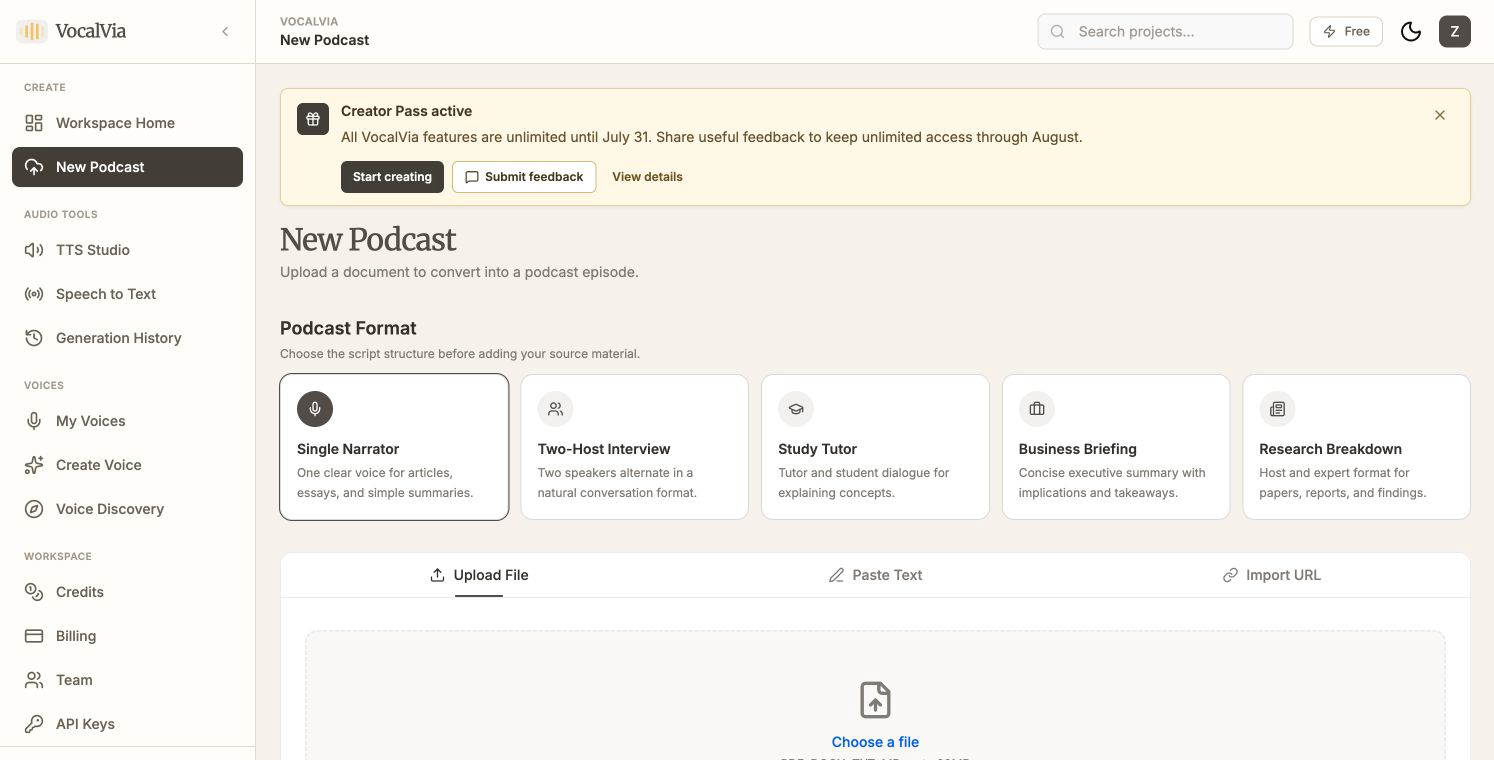
1. Choose a format and add your source
Open New Podcast. Choose the podcast format before adding your content:
| Format | Best for |
|---|---|
| Single Narrator | Articles, essays, and straightforward summaries |
| Two-Host Interview | Natural back-and-forth discussion |
| Study Tutor | Tutor-and-student explanations |
| Business Briefing | Concise executive takeaways |
| Research Breakdown | Papers, reports, methods, and findings |
Then use one of the three source options:
- Upload File: PDF, DOCX, TXT, or Markdown, up to 20 MB.
- Paste Text: paste up to 100,000 characters and optionally add a title.
- Import URL: enter a public article URL and VocalVia will extract its readable content.
After the source is accepted, VocalVia opens a project workspace for it.
2. Generate the script
In Generate Podcast Script, review these settings:
- Script Style: Summary, Narrative, Conversational, Detailed, or Original.
- Output Language: choose the language you want listeners to hear.
- Podcast Format: keep the format selected during upload or change it here.
- Custom Instructions: optionally tell the AI what to emphasize, omit, or explain.
Click Generate Script. Generation runs in the background, so keep the project open until the script appears.
Tip: Use Original when you want spoken cleanup without summarizing. Use Summary when you want a shorter episode focused on the main ideas.
3. Review before recording
Click Edit Script to correct facts, names, speaker labels, or wording. For multi-speaker formats, keep each spoken line in Speaker: dialogue form so TTS Studio can assign it correctly.
Production notes about background music or sound effects are detected and excluded from speech. They are not mixed into the generated audio.
4. Open TTS Studio
Under Audio Setup, check the detected speaker and segment counts, then click Open TTS Studio. Your project, speakers, and script segments are carried over automatically.
In TTS Studio:
- Assign a voice to each speaker.
- Review segment order and delivery.
- Use Pronunciation for names or specialist terms.
- Click Generate Audio.
Audio generation continues in the background. You can monitor it in the Studio history panel or on Generation History, then play or download the finished MP3.
What to read next
Put the guide into practice
Start with your own document and keep the script editable from source to speech.